Google Search Console has a built-in option that lets you switch to a different domain (change the website address, transfer domain ownership) in just a few clicks.
1. Complete the website migration from the old site to the new one using a 301 redirect
Website owners typically migrate their sites for the following reasons:
- to change the website’s domain name, while the website itself (its content) remains the same;
- redirecting one website to another as a result of merging one website with another (usually, some content from the old website is then added to the new one).
There are dozens of nuances to consider when migrating a website, but that is beyond the scope of this guide. To ensure a successful migration, use the checklist from Search Console Help and the Website Migration Checklist from Sitechecker.
2. Find the option to change the address in your site’s settings
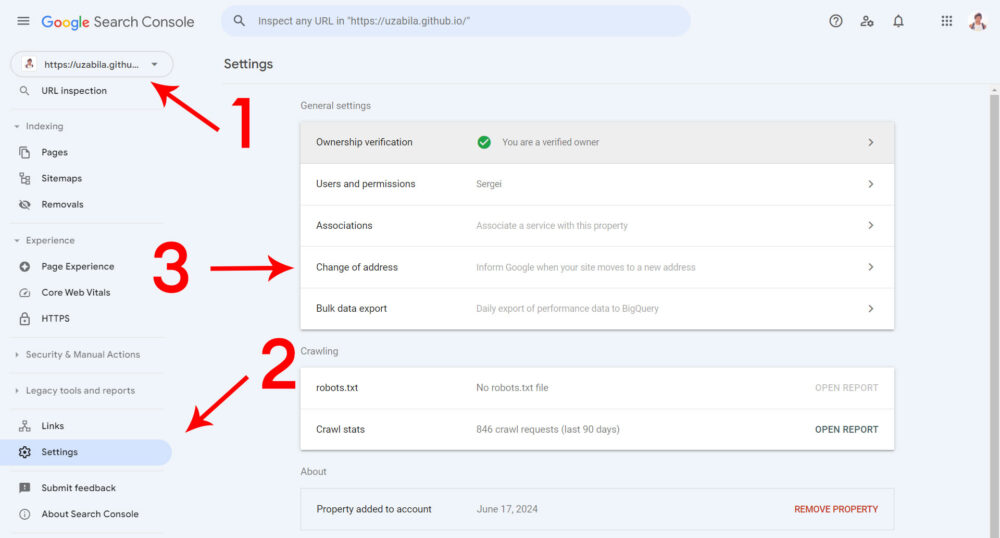
Go to Google Search Console and select the project you want to move to a different domain name. Then click “Settings” and “Change of address.”
3. Select the property that will be the new domain
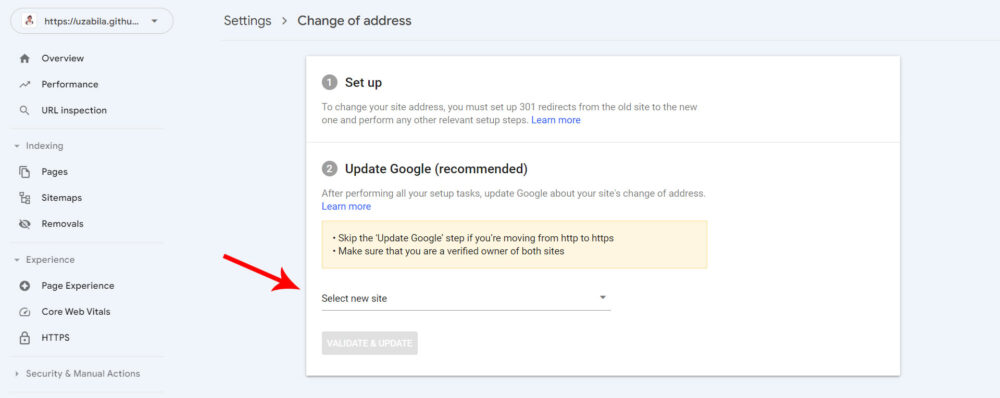
You can only move a property to a domain for which you have access in Google Search Console. After selecting the site, click the “Validate & Update” button.
4. Monitor the migration process
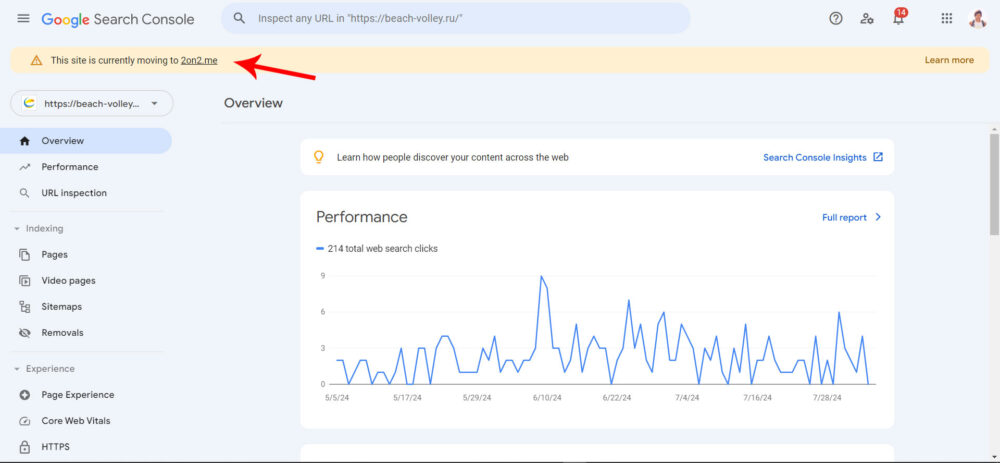
After a short while, you’ll see a notification about the address change within the redirected property (domain, domain property).
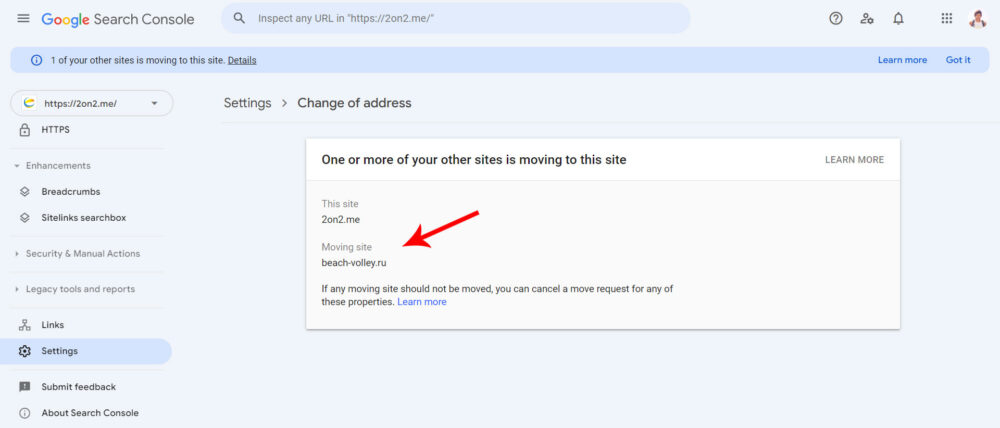
You’ll also see similar notifications in the new domain’s properties.
You can also go to the “Change of Address” option in the new domain’s “Settings” to find information about all the sites being migrated to this domain.
That’s it. If you’d like more information about GA and GSC, stay tuned to this blog—there’s plenty of interesting and professional content coming up.
